How to Automatically Sync Shopify Multi-Currency Orders to HubSpot CRM via Make.com
Cross-border e-commerce architectures frequently break accounting models inside HubSpot CRM. Shopify merchants deploying localized store profiles capture transactions across diverse local currencies. However, native synchronization engines often flatten incoming numerical values. This strips out currency identification codes completely.
A 15,000 JPY checkout gets recorded identically to a 15,000 USD contract. Pipeline reporting calculations skew immediately. Manual administrative adjustments exhaust engineering time. Operational scale stalls due to data decay.
Resolving this systemic mapping breakdown requires an explicitly decoupled, structured data routing pipeline. By targeting localized webhook event arrays inside Workflow Nexus reference documentation, this deployment blueprint utilizes Make.com to catch, parse, convert, and push precise e-commerce transactional properties straight into isolated HubSpot multi-currency deal frameworks.
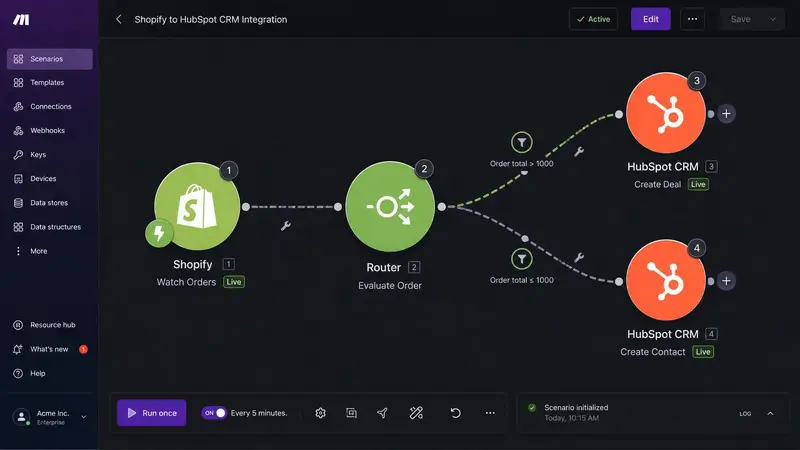
1. The Root Cause: Object Payload Discrepancies
Standard data objects emitted during a Shopify transaction split currency properties across independent nested arrays. The default property `total_price` acts as a flat string representation of the order total. It does not contain context regarding the buyer's asset type. To find the source currency, integration scripts must read the nested structural block labeled `total_price_set`.
Review the standard incoming transaction payload representation below. Notice how the financial data divides between base merchant parameters (`shop_money`) and local transaction fields (`presentment_money`).
{
  "order": {
    "id": 88391024823,
    "order_number": 1094,
    "email": "customer@emea-enterprise.com",
    "currency": "EUR",
    "total_price": "850.00",
    "total_price_set": {
      "shop_money": {
        "amount": "926.50",
        "currency_code": "USD"
      },
      "presentment_money": {
        "amount": "850.00",
        "currency_code": "EUR"
      }
    }
  }
}
If an integration app targets the root property `total_price` without referencing the specific array block inside `presentment_money`, HubSpot forces the value into the portal's native default currency setting. This architectural slip wrecks data reliability. Fixing this data flow requires building a dynamic verification layer.
Deploy Pre-Configured Integration Blueprints
Avoid constructing intricate API routers from scratch. Download our verified Make.com multi-currency serialization workflow file directly into your operations environment.
Acquire Production-Ready Blueprint2. Node-by-Node Interface Configuration Protocol
Building this automated pipeline requires precision inside the design canvases of both Make.com and HubSpot. Follow these explicit configuration steps exactly to ensure error-free runtime execution logs.
Step 1: Instantiating the Isolated Shopify Webhook Listener
Access your Make.com workspace console dashboard. Select **Create a new scenario**. Click the core node module button and choose the **Shopify** integration package icon. From the structural event list, select the trigger option labeled **Watch Orders**.
Inside the configuration modal interface popup, click **Add** next to the Webhook field parameter. Set the **Webhook name** strictly to `Shopify Multi-Currency Production Receiver`. Set the **Connection** framework to link your active Shopify store credentials via authenticated OAuth protocols.
From the **Event** dropdown category, click **Order creation**. Set the **Format** mapping parameter explicitly to **JSON**. Click **Save**. Copy the newly generated unique listener URL endpoint address string. Access your Shopify Admin panel dashboard, navigate directly to **Settings** -> **Notifications** -> **Webhooks**, and paste the link to finalize your network listener infrastructure node.
Step 2: Designing the Multi-Path Conditional Router Block
Hover over the right edge of your active Shopify module within the Make canvas interface. Click **Add a module**. Select the **Router** tool utility located inside the baseline operational flow control toolbox. This generates an active directional split node.
Click directly on the upper branch connecting wire vector line to invoke the **Set up a filter** parameter window pane. Enter `Route Base Store Currency` in the **Label** text input box. In the **Condition** operand evaluation field, map your incoming Shopify data element token. Click the variable tree and select `order.currency`. Set the evaluation operator explicitly to text match **Equal to**. In the secondary validation field box, map the parameter token variable `order.shop_currency`.
Click on the lower branch line vector to configure your alternative foreign exchange routing path. Label this filter structure `Route Foreign Presentment FX`. Map the field token `order.currency` in the primary slot. Change the evaluation operator token parameters to **Not equal to**. In the trailing valuation data field, insert the token `order.shop_currency`.
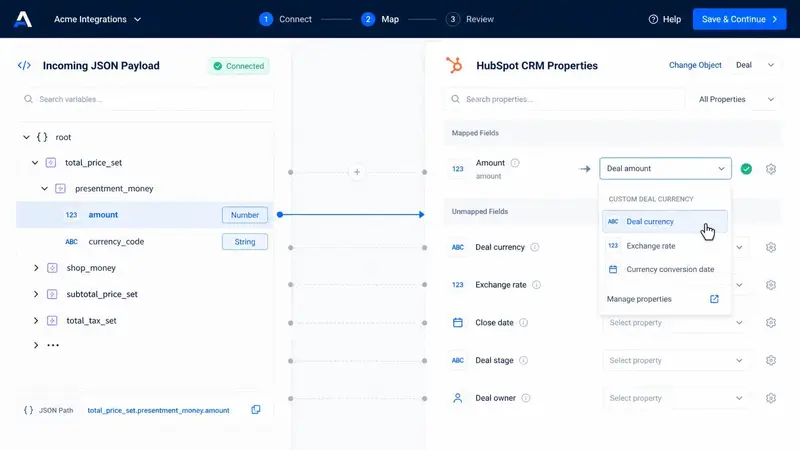
Step 3: Constructing the Target HubSpot Deal Matrix Nodes
Attach a brand-new **HubSpot CRM** integration module package onto the terminal endpoint of your lower foreign exchange branch line. From the action list modal popup interface, select **Create a Record**. Set the **Object Type** selector dropdown box to **Deal**.
Scroll down to the parameter entry panel interface options. In the **Deal Name** input field, string static text with variable payload data tokens: `Shopify Order #` followed by mapping token `order.order_number`. Locate the field labeled **Pipeline**. Select your dedicated international sales channel tracking board from the dropdown selection tool.
Step 4: Formula Synchronization and Execution
Locate the data property field labeled **Amount**. Click the mapping tool and paste the exact evaluation formula parameter string to extract the foreign transaction metrics safely:
{{parseNumber(1.order.total_price_set.presentment_money.amount; ".")}}Locate the **Deal Currency** property field. Click the token picker and select the variable value output string matching `order.currency`. This forces the HubSpot CRM platform engine to override portal base parameters and map values to local buyer currencies.
3. Production-Grade Exception Handling and Validation Logs
High-volume sales spikes will cause API failures without defensive error-handling configurations. When multiple orders hit the system simultaneously, endpoints can breach data quotas, triggering processing delays.
According to official HubSpot API Usage Guidelines, portals restrict transactional request volume to mitigate infrastructure stress. Standard pricing tiers enforce a strict ceiling of 100 calls per 10 seconds, and breaching this returns an HTTP 429 error code.
To secure your data flow against drops, right-click directly on your active HubSpot module inside the Make workspace editor canvas interface. Select **Add error handler** from the context dropdown option window. Choose the advanced **Break** directive icon module tool from the option listings.
Inside the Break configuration options, set **Automatically repeat execution** to **Enabled**. Change **Number of attempts** to `5`. Set the **Interval between attempts** slider value parameter exactly to `2` minutes. If HubSpot passes an HTTP 429 rate exception code token, Make caches your data and safely retries the transmission after a cooling-off period.
Review the exact structural JSON logging array outputted when an error is caught and successfully managed by the execution handler below:
{
  "execution_error": {
    "module_id": 4,
    "status_code": 429,
    "error_message": "Rate limit exceeded for endpoint: /crm/v3/objects/deals",
    "retry_sequence_initiated": true,
    "attempt_parameters": {
      "current_attempt": 1,
      "max_attempts": 5,
      "delay_seconds": 120
    }
  }
}
Data payload structural mutations also introduce runtime risks. If a corporate customer deploys an international gift card or custom localized rebate code at check out, Shopify may emit currency property fields containing unformatted character notation strings. Passing these dirty records directly into HubSpot drops an HTTP 400 Bad Request error response, halting automation.
Sanitize incoming variables by ensuring text properties explicitly parse as numeric floating points before reaching your CRM target endpoint. Utilize the native evaluation function syntax `parseNumber()` inside properties fields mapping screens. This safely formats any alphanumeric string into clean decimal notation, filtering out broken data structures before transmission.
4. Pre-Flight Deployment Audit Checkpoints
Before toggle-switching your automation engine from staging environments to active live data pipelines, execute these systems validation tests:
- Execute 3 separate sample sandboxed test orders inside Shopify checkout utilizing variable alternative international currencies (e.g., EUR, CAD, JPY).
- Access your HubSpot deal pipeline dashboard interface screen and verify that the target account deal records generate with local transaction properties matching currency symbols.
- Confirm your pipeline synchronization activity monitor reads historical timestamps in exact matching compliance with ISO 8601 formatting parameters (`YYYY-MM-DDTHH:mm:ssZ`).
- Ensure transactional data deduplication constraints are enforced globally by mapping HubSpot unique external ID reference field parameters strictly to incoming token identifiers: `shopify_order_id`.
Enterprise Troubleshooting & Error Handling
Production integration pipelines break. Below is the strict protocol to diagnose, isolate, and fix runtime failures within your Shopify-HubSpot multi-currency sync engine.
1. HTTP 429 Too Many Requests (HubSpot Rate-Limit Crash)
The Problem: A high-volume batch of concurrent Shopify orders triggers a flood of concurrent HTTP POST requests to HubSpot. The integration immediately halts with an HTTP 429 error code.
The Logic: HubSpot Free and Starter tiers enforce a strict rate limit of 100 requests per 10 seconds. Enterprise tiers increase this limit, but rapid webhooks from a flash sale will still breach the threshold.
WARNING: Without a buffer, Make.com immediately drops payloads during a rate-limit breach. This leaves your ERP out of sync.
Step-by-Step Configuration: To fix this, you must configure a Break error handler on your HubSpot module. Open the Make.com scenario designer. Right-click the HubSpot module and select "Add error handler", then choose Break.
Set Number of attempts to 5. Set Interval between attempts to 1 minute. This forces Make.com to pause, buffer the payload.data, and retry the execution once the rate-limit window resets.
2. HTTP 400 Bad Request (ISO 8601 Timestamp Mismatch)
The Problem: The scenario executes, but the HubSpot CRM rejection logs show an HTTP 400 error. The order date field displays blank or corrupted values inside the CRM UI.
The Logic: Shopify outputs the raw created_at variable using standard Unix epochs or localized formatting depending on your Webhook configuration. HubSpot API properties require explicit midnight UTC timestamps or absolute ISO 8601 formatting.
Step-by-Step Configuration: Locate the Key-Value pairs mapping inside your HubSpot update module. Do not map raw text strings directly to date properties. Apply the built-in Make.com date formatting functions.
Use the exact function string below to parse the incoming string:
{{formatDate(parseDate(1.created_at; "YYYY-MM-DDTHH:mm:ssZ"); "YYYY-MM-DD")}}This explicitly converts localized data into the absolute date format required by HubSpot property definitions.
3. Multi-Currency Array Aggregator Null Failures
The Problem: Orders containing multiple line items collapse during conversion. Only the first item synchronizes to the HubSpot deal record. The remaining items vanish from the pipeline.
The Logic: Shopify outputs line items inside a nested JSON array bundle. The array contains individual price, quantity, and currency_code properties for every SKU. Passing this directly into a non-array text field forces a parsing failure.
PRO-TIP: You must place a Make.com Router followed by an Array Aggregator directly after the Shopify trigger module. This normalizes the nested JSON structure into an explicit, single payload.
Step-by-Step Configuration: Set the source module of the Array Aggregator to the Iterator that unpacks the line items. Inside the aggregator settings, map your target structure precisely.
Ensure that the nested JSON payload strictly matches this schema before sending the final payload via the HTTP POST method:
{
  "line_items": [
    {
      "shopify_product_id": "{{1.line_items[].product_id}}",
      "quantity": "{{1.line_items[].quantity}}",
      "unit_price": "{{1.line_items[].price}}",
      "currency": "{{1.currency}}"
    }
  ]
}
4. HTTP 401 Unauthorized (Expired OAuth Bearer Token)
The Problem: The sync scenario stops executing entirely. The global execution log shows persistent HTTP 401 errors across all HubSpot connection points.
The Logic: Private apps inside HubSpot utilize static access tokens. If an admin alters scope permissions, or if you are utilizing a custom OAuth loop where the refresh token process stalls, the Bearer Token becomes invalid.
This kills your automated operations. Manual recovery is mandatory.
Step-by-Step Configuration: Open the HubSpot Developer portal. Verify that your private app access token retains active crm.objects.deals.write and crm.objects.contacts.write scopes. If permissions match, copy the fresh token string.
Navigate to Make.com. Open the Connections tab, select the faulty credential link, click Re-authorize, and paste the updated token string. Run a single integration test cycle to verify the connection status.