Resolving HubSpot Error 400 During High-Volume Webhook Syncs [Step-by-Step Blueprint]
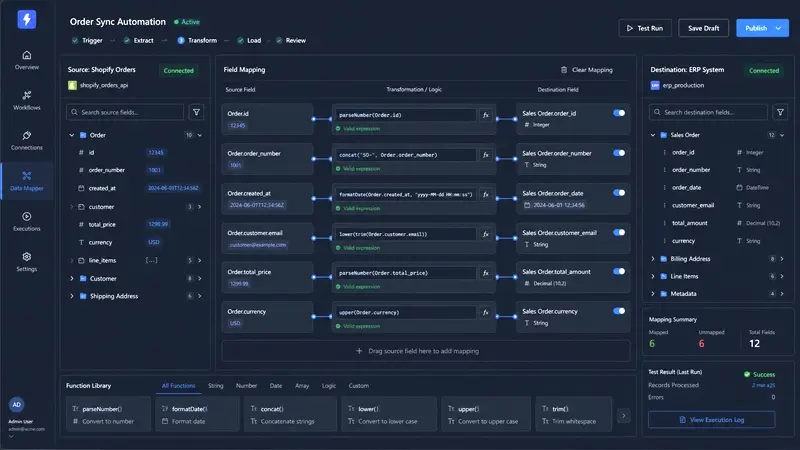
High-volume automated data pipelines connecting modern e-commerce architectures or proprietary databases to CRM platforms frequently encounter silent failures. Among these execution blockers, the HTTP 400 Bad Request error thrown by the HubSpot CRM API is the most disruptive for systems integrators. This error signals an immediate structural or syntax rejection of data payloads. Unlike temporary server issues or rate limits, an HTTP 400 error indicates an absolute data mismatch that drops payloads instantly.
When a web platform transfers processing logs or transactional webhooks at a rate exceeding 50 concurrent requests per second, standard mapping logic often breaks down. Null variables, malformed JSON objects, and unmapped property types pass through loose data verification filters. This results in immediate API rejections.
This guide provides a comprehensive production blueprint to isolate data structural mutations, handle arrays correctly, and configure resilient error handling inside Make.com to resolve HubSpot HTTP 400 errors completely.
1. The Root Cause: Payload Mutations and Type Mismatches
The HubSpot v3 CRM API enforces strict type definitions across all standard and custom properties. When an enterprise application transmits data via an HTTP POST or HTTP PATCH request, HubSpot evaluates the schema of incoming key-value pairs before processing the record. If even a single property violates the platform's required validation parameters, the entire payload fails.
The structural degradation of automated sync operations typically traces back to four primary architectural blind spots:
Alphanumeric vs. Numeric Float Validation
E-commerce triggers often output financial values as flat text strings containing currency symbols, localized commas, or trailing whitespaces. If your integration script passes a raw string variable like "1,250.50 USD" into a HubSpot property defined explicitly as a number type, the API returns a validation error.
/* REJECTED PAYLOAD EXECUTING WITH HTTP 400 */
{
  "properties": {
    "dealname": "Enterprise Order #2931",
    "amount": "1,250.50 USD"
  }
}
HubSpot expects strict floating-point decimals with no non-numeric characters. The payload must be cleaned to decimals before transmission to avoid an unhandled system crash.
ISO 8601 Timestamp Formatting Requirements
Date-time mapping is a common failure point for custom integrations. External platforms emit localized timestamp formats, Unix epoch integers, or incomplete date strings. HubSpot date properties require absolute milliseconds since the Unix epoch or a strict midnight UTC ISO 8601 formatted date string (YYYY-MM-DD). Passing an unparsed time zone string like "09/07/2026 14:32:12" causes an immediate schema exception.
Multi-Currency and Nested Enumeration Restrictions
When dealing with localized multi-currency architectures, as outlined in our core Shopify to HubSpot CRM multi-currency sync guide, dropdown properties must strictly match the internal values defined in the CRM settings. If an external transaction passes an array containing unconfigured currency codes or unexpected property fields, the validation engine fails. HubSpot cannot map undefined values dynamically.
Deploy Resilient High-Volume Architectures
Avoid constructing intricate API validation routers from scratch. Download our verified Make.com serialization workflow file and execute it within your production operations environment.
Acquire Production-Ready Blueprint2. API Data Flow and Payload Architecture
Resolving high-volume failures requires tracing the exact operational data flow protocol. The integration layer must capture incoming webhooks, normalize mutations, and safely stream clean JSON arrays to the HubSpot CRM endpoints using secure Bearer Token authentication.
The Production Data Flow Pipeline
[External Webhook Trigger]
       │
       ▼ (Raw JSON Payload)
[Make.com Webhook Listener]
       │
       ▼
[Data Sanitization Layer (parseNumber / formatDate)]
       │
       ▼
[Router / Array Aggregator Validation Nodes]
       │
       ▼ (Validated JSON Array)
[HubSpot CRM v3 API Endpoint]
Reference Target Payload Schema
To ensure reliable delivery, the final JSON object hitting the HubSpot Deal API endpoint (/crm/v3/objects/deals) must adhere strictly to the schema structure below. Every field inside the properties block must match its corresponding data type definition exactly.
{
  "properties": {
    "dealname": "Enterprise Order #1094",
    "pipeline": "default",
    "dealstage": "appointmentscheduled",
    "amount": 850.00,
    "closedate": "2026-07-09",
    "unique_transaction_id": "88391024823"
  }
}
If an integration app targets root properties without executing proper array validation, HubSpot forces an error response. This architectural slip wrecks data reliability over time. Fixing this data flow requires building an isolated data transform layer directly within the integration canvas.
3. Node-by-Node Interface Configuration Protocol
Building this automated pipeline requires precision inside the design canvases of both Make.com and HubSpot. Follow these explicit configuration steps exactly to ensure error-free runtime execution logs.
Step 1: Payload Isolation and Type Transformation
Open your active scenario inside the Make.com designer canvas. Locate the module preceding your HubSpot data transmission node. If you map raw webhook outputs directly to HubSpot, you must decouple them by inserting an intermediate Tools: Set Variable module.
Click Add a module between your trigger and HubSpot. Select Tools, then choose Set Variable. Name the variable SanitizedAmount.
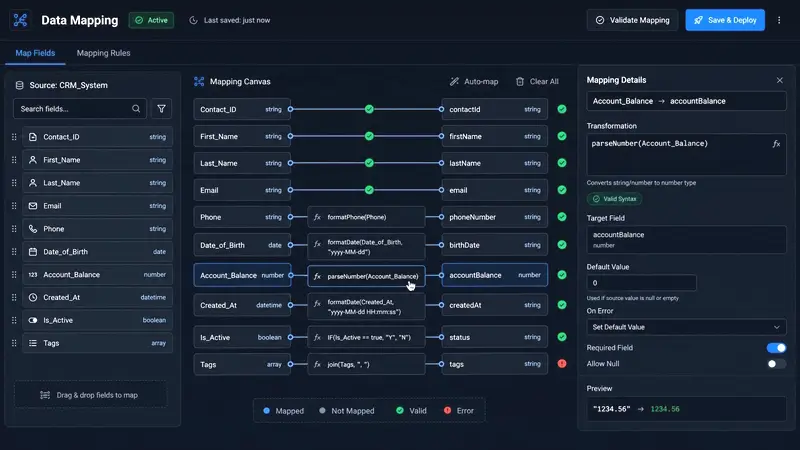
Inside the Variable value field, apply the native parseNumber function to clean localized string formats. This strips out commas and alphanumeric currency identifiers, leaving only a clean numeric floating point. Use this exact syntax structure:
{{parseNumber(1.order.total_price; ".")}}Add a second variable row named SanitizedCloseDate. Apply a clean nesting of formatDate and parseDate functions to normalize incoming date tags to midnight UTC compliance:
{{formatDate(parseDate(1.order.created_at; "YYYY-MM-DDTHH:mm:ssZ"); "YYYY-MM-DD")}}Step 2: Enumeration Filtering and Array Aggregation
High-volume transactions often introduce unexpected values into dropdown fields. To prevent these from breaking the integration, you must install an explicit conditional verification step.
Hover over the connection vector line entering your HubSpot module. Click the link line to open the Set up a filter pane. Label the filter Validate Critical Schema Keys.
In the Condition evaluation field, map your newly generated variable token: Tools.SanitizedAmount. Set the evaluation operator to Numeric operators: Greater than or equal to. Set the comparison value to 0.
Add an AND rule layer. Select your unique transaction identifier property (e.g., unique_transaction_id). Set the operator to Basic operators: Exists. This structural filter validation logic guarantees that no incomplete or blank payloads reach the HubSpot module.
┌──────────────────────────────────────────────────────────┐
│                   FILTER CONFIGURATION                   │
├──────────────────────────────────────────────────────────┤
│ Label: Validate Critical Schema Keys                     │
├──────────────────────────────────────────────────────────┤
│ Condition: [Tools.SanitizedAmount] >= 0                  │
│ AND                                                      │
│ Condition: [order.unique_transaction_id] Exists          │
└──────────────────────────────────────────────────────────┘
Step 3: HubSpot Property Mapping Realignment
Open the settings for your target HubSpot CRM module (e.g., Create a Record or Update a Record). Locate the required numerical parameter field labeled Amount. Clear any raw external data tokens from this field.
Map the clean variable token generated in Step 1: Tools.SanitizedAmount. This guarantees a clean floating-point decimal format. Locate the field labeled Close Date. Map the explicit string token: Tools.SanitizedCloseDate. Save your module changes.
Run a manual execution test cycle to confirm compliance across your property fields. This forces the HubSpot CRM platform engine to override portal base parameters and map values to local target properties based on explicit developer schema constraints.
4. Enterprise Troubleshooting & Error Handling
Even a well-configured validation layer can experience failures during high-volume sales spikes or unexpected system updates. When thousands of API calls pass through Make.com, edge-case variations can still trigger schema exceptions. To prevent data drops, you must deploy an advanced, automated error-handling strategy.
For enterprise environments running high-volume pipelines, we highly recommend switching to an advanced Make.com plan. Higher tiers provide crucial capabilities for processing large data sets safely, including advanced error-handling modules, elevated execution limits, and automated data packet retries. These features prevent synchronization bottlenecks when processing large amounts of data. For official platform limits, you can review the HubSpot API Usage Guidelines and the Make.com Advanced Plan Features to optimize packet allocations.
Deep-Dive Error Isolation Protocols
When a scenario run drops due to an HTTP 400 error, immediately analyze the raw JSON response payload from HubSpot. The v3 API returns a detailed descriptive block rather than a generic failure message.
Review the execution log array structure generated during a validation failure below:
{
  "status": "error",
  "message": "Property values were not valid: [{\"isValid\":false,\"message\":\"Property \\\"amount\\\" expected a number but received \\\"850.00 EUR\\\"\",\"error\":\"INVALID_NUMBER\",\"propertyName\":\"amount\"}]",
  "correlationId": "b182a934-8c11-4091-bf9a-fa2d31289104",
  "category": "VALIDATION_ERROR"
}
The key property to analyze is INVALID_NUMBER inside the message string array. This explicit error shows exactly which field failed validation (in this case, the amount property received an unsupported text string instead of a raw number).
Step-by-Step Production Error Routing Configuration
To capture these edge-case validation errors automatically and prevent scenario execution from halting completely, you must install an asynchronous error handling track.
                  ┌───────────────┐
                  │HubSpot Module │
                  └───────┬───────┘
                          │ (Error: 400 / 429)
                          ▼
                 [Router Error Split]
                  ├───(If Status = 429)───► [Break Module (Retry)]
                  └───(If Status = 400)───► [Advanced Data Scrubbing Node]
Open the Make.com scenario designer workspace canvas. Right-click directly on your active HubSpot CRM module node interface icon. Select Add error handler from the context dropdown option window pane. Choose the Router tool utility from the flow options list. This splits your error handling track into two parallel diagnostic paths.
Path A: Resolving HTTP 429 and HTTP 503 Spike Volatility
Click the upper branch wire line vector coming from the error splitter node. Label this path Buffer Rate-Limit Spikes. Set the validation condition property to error.status_code. Set the evaluation operator to Equal to. Input the numeric value 429 (or 503 for temporary server timeouts). Standard pricing tiers enforce strict ceilings of 100 calls per 10 seconds, and breaching this returns an HTTP 429 error code.
Attach a Break directive module tool to the end of this branch. Open the Break configuration settings. Set Automatically repeat execution to Enabled. Change Number of attempts strictly to 5. Set the Interval between attempts slider value precision exactly to 2 minutes. If HubSpot throttles your data stream, Make will pause and retry the transaction.
Path B: Isolating and Logging HTTP 400 Payload Malformations
Click the lower branch wire line vector coming from the error splitter node. Label this path Isolate Schema Failures. Set the filter validation condition to error.status_code. Set the evaluation operator to Equal to. Input the numeric value 400.
Attach an Advanced Data Scrubbing Node or a Data Store: Add a record module to this terminal endpoint. Map critical diagnostic fields into your data log record: error.message, error.status_code, and the unique identifier unique_transaction_id.
Follow this module with a Resume directive icon tool. Open its settings and insert a blank fallback structure or neutral values (e.g., 0 for amount) into the required properties fields parameters. Sanitize incoming variables by ensuring text properties explicitly parse as numeric floating points before reaching your CRM target endpoint. This safely formats any alphanumeric string into clean decimal notation, filtering out broken data structures before transmission.
5. Pre-Flight E-Commerce System Audit Checkpoints
Before moving your updated automation pipeline from sandbox environments to live production servers, execute these four critical verification checkpoints to ensure long-term stability:
- Test Data Mutations via Postman or Curl: Send a simulated JSON test payload containing an intentional alphanumeric string (
"850,00€") to your Make.com webhook listener URL endpoint. Verify that the intermediate transform layer parses this value down to a clean decimal850.00before it reaches HubSpot. - Audit HubSpot Schema Constraints: Check that your API access permissions contain active
crm.objects.deals.write,crm.objects.deals.read, andcrm.properties.readscopes. If permissions do not match, HubSpot may return an unexpected HTTP 400 or HTTP 401 error code. - Verify Compliance with ISO 8601 Specifications: Review the historical timestamp logs inside your data store. Ensure all tracking dates match standard formatting requirements exactly (
YYYY-MM-DD). - Enforce Unique Transaction IDs Globally: Ensure data deduplication constraints are enforced globally by mapping the HubSpot unique external reference ID property directly to your incoming identifier variable:
unique_transaction_id. This prevents duplicate deal records if a webhook fires multiple times during high-volume server spikes.
Deploying these validation layers, precise data conversions, and resilient error-handling structures ensures a stable integration that handles enterprise workloads without dropping records or triggering unexpected API failures.